21 Frugal Living Swaps That Save Real Money Without Much Effort. Last October, I sat down at my desk with an iced Americano and three months of credit card statements. My digital overhead was quietly hemorrhaging cash. Between an $85 Verizon postpaid bill, a web of unmanaged cloud storage plans, a $15 router rental fee I had ignored for two years, and four different streaming platforms I barely launched, my tech ecosystem was bleeding money.
- 1. Telecom & Connectivity: Slashing Carrier Overhead Without Signal Loss
- 2. 1. Ditch Postpaid Giants for US-Based MVNO Networks
- 3. 2. Kill the $15 ISP Modem-Router Rental
- 4. 3. Downgrade Your Home Internet from Gigabit to 300 Mbps
- 5. 4. Swap Paid International Roaming for Local or Regional Travel eSIMs
- 6. 5. Ditch Landline Fees for Free VoIP
- 7. Cloud Storage, Backups, and Digital Management
- 8. 6. Replace Tiered Cloud Storage with Syncthing and Local Backups
- 9. 7. Trade Adobe Acrobat Pro for Free PDF Tools
- 10. 8. Drop Paid Password Managers for Bitwarden
- 11. 9. Replace Paid Cloud File Transfers with Wormhole
- 12. Hardware Longevity, DIY Repairs, and the Secondary Market
- 13. 10. Buy Certified Refurbished Electronics via Swappa and Back Market
- 14. 11. Revive Sluggish Laptops with a $25 SSD Swap
- 15. 12. Source Monitors and Peripherals from University Surplus Outlets
- 16. 13. Fix Controller Stick Drift Instead of Buying New Pads
- 17. Smart Home Automation to Lower Utility Costs
- 18. 14. Eliminate Phantom Energy Loads with Smart Plugs
- 19. 15. Leverage Domestic Utility Rebates for Smart Thermostats
- 20. 16. Replace Paid Home Security Subscriptions with Local RTSP Cameras
- 21. Digital Subscription Audits and Open-Source Replacements
- 22. 17. Swap Microsoft 365 for FOSS Alternatives
- 23. 18. Cut Cable Bloat with an OTA HD Antenna and FAST Services
- 24. 19. Drop Photoshop for Darktable and Photopea
- 25. 20. Run DNS-Level Ad Blockers to Lower Data and Bandwidth
- 26. 21. Pool Streaming and Music Services via Household Family Tiers
- 27. The Actual Monthly Savings: My Real-World Receipt Audit
- 28. Frequently Asked Questions
- 29. Will I notice deprioritization if I switch to an MVNO network?
- 30. Is open-source software safe for regular, non-technical users?
- 31. Does buying refurbished electronics carry a high risk of hardware failure?
- 32. Can 300 Mbps home internet really support remote work and 4K streaming simultaneously?
- 33. How much effort does setting up local smart home hardware actually require?
I decided to run a ruthless audit. I wasn’t interested in extreme digital minimalism or living off a 10-year-old ThinkPad running Arch Linux. I just wanted my setup to work reliably without paying the “convenience tax” that big telecom, Big Tech, and subscription-hungry SaaS companies rely on to pad their bottom lines.
By making 21 low-effort tech swaps, I shaved roughly $220 off my monthly baseline expenses—putting over $2,600 back into my checking account every single year. You don’t have to overhaul your daily workflow to see similar results. Here is the exact blueprint I used.
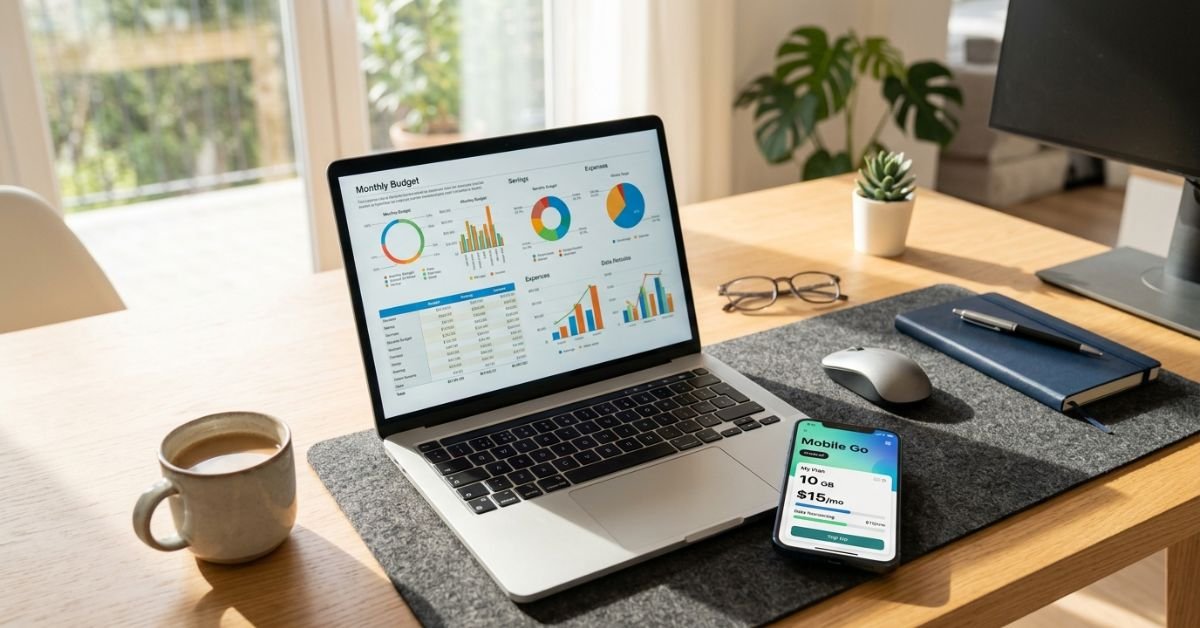


Telecom & Connectivity: Slashing Carrier Overhead Without Signal Loss
1. Ditch Postpaid Giants for US-Based MVNO Networks
If you are paying $70 to $95 a month directly to Verizon, AT&T, or T-Mobile for a single line, you are overpaying for priority data you likely never touch. Mobile Virtual Network Operators (MVNOs) lease the exact same cellular towers for a fraction of the cost.
I moved my primary phone line over to an MVNO. Mint Mobile runs directly on T-Mobile’s 5G network, offering plans starting at $15/month if you prepay. Visible runs on Verizon’s ultra-wideband infrastructure, giving you truly unlimited talk, text, and data with unlimited mobile hotspot for $25/month flat (taxes and fees included). If you want granular control over your shared family buckets, US Mobile lets you toggle between Verizon (Warp 5G) and T-Mobile (GSM 5G) networks effortlessly.
- The Monthly Savings: Down from $85/month to $25/month. Saved: $60/month.
2. Kill the $15 ISP Modem-Router Rental
Look closely at your monthly internet bill from Comcast (Xfinity), Spectrum, or Cox. Unless you caught it during an initial sign-up promo, there is a good chance you are paying between $12 and $17 every month just to rent their generic, locked-down gateway.


Pick up your own standalone DOCSIS 3.1 modem (such as an Arris SURFboard SB8200) paired with an affordable Wi-Fi 6 router. A brand-new or open-box unit pays for itself in roughly six to eight months. After that point, you keep that cash in your wallet indefinitely.
💰 More Cheap Living Tips You'll Love
- Debt Snowball Method: How It Works (With Real Example)
- Debt Snowball on a Low Income: Does It Still Work in 2026-27?
- Debt Avalanche Method Step by Step: Fast Debt Payoff
- Pay Off Debt Faster Without Earning More: Tech Guide
- First Steps to Take When You Decide to Get Out of Debt
- Save Money or Pay Off Debt First? Tech-Driven Guide
- The Monthly Savings: Saved: $15/month.
3. Downgrade Your Home Internet from Gigabit to 300 Mbps
Internet service providers have convinced millions of Americans that remote work requires a 1,000 Mbps (Gigabit) fiber or coaxial connection. That is pure marketing hype.


A single 4K Netflix stream uses about 15 to 25 Mbps. An uncompressed Zoom call barely scratches 4 Mbps down and 3 Mbps up. Unless you have four competitive gamers downloading 100GB Call of Duty patches at the identical second, a basic 300 Mbps tier handles a household of four remote workers with headroom to spare. I dropped my plan from a $90/mo gigabit tier to an introductory $40/mo 300 Mbps plan. Ping times stayed identical, and no one in the house noticed a difference.
- The Monthly Savings: Saved: $50/month.
4. Swap Paid International Roaming for Local or Regional Travel eSIMs
Flying overseas usually tempts people into paying their domestic carrier’s $10/day international day pass. A two-week trip can slap an extra $140 on your cell phone statement.
Instead of paying carrier roaming rates, use a travel eSIM marketplace like Airalo or Roamless. You download a digital data profile to your unlocked smartphone before leaving the runway and pay local data rates (often around $5 to $10 for 5GB of high-speed data, valid for 30 days). Combine that with free apps like WhatsApp or FaceTime Audio over data, and your communication costs drop dramatically.
- The Average Savings: Saved: ~$30–$70 per trip.
5. Ditch Landline Fees for Free VoIP
If you still maintain a home landline for elderly relatives, home security, or legacy reasons, eliminate the $20 to $30 monthly charge from your phone provider. Grab an Obihai or Grandstream VoIP adapter paired with a free Google Voice account or a low-cost VoIP provider like Ooma. You keep your home handset active without the bloated legacy copper network line charges.
- The Monthly Savings: Saved: ~$20/month.
Cloud Storage, Backups, and Digital Management
6. Replace Tiered Cloud Storage with Syncthing and Local Backups
Subscription fatigue is real when it comes to cloud storage. You start with the free 15GB tier, bump up to $2.99/mo for 200GB, and before you know it, you are locked into a $9.99/month 2TB recurring family plan for Google One or Apple iCloud+.
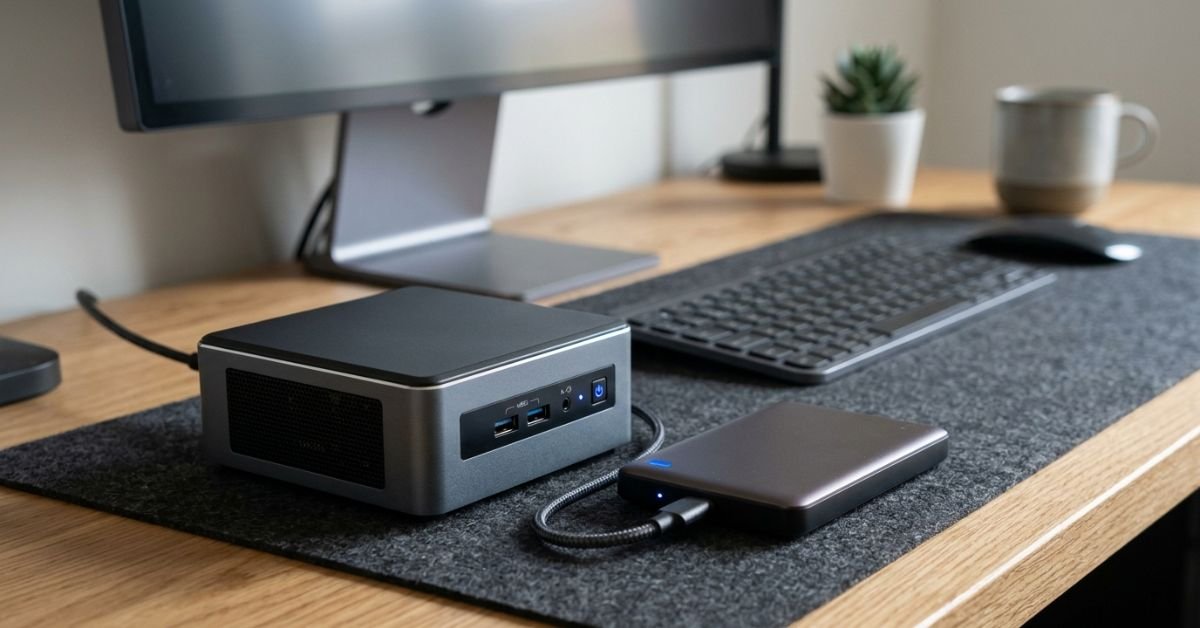
A simple, zero-cost alternative for moving files between your phone, laptop, and desktop is Syncthing. It is a continuous, peer-to-peer, open-source file synchronization tool. Your files sync directly across your own local hardware over Wi-Fi without passing through an external company’s servers. Pair this with a single 4TB external hard drive plugged into your home network router, and you dodge perpetual cloud storage rent.
- The Monthly Savings: Saved: $10/month.
7. Trade Adobe Acrobat Pro for Free PDF Tools
Adobe charges an eye-watering $19.99 per month for Acrobat Pro simply to let you edit text, sign contracts, and rearrange pages in a PDF.
Ditch the creative cloud tax. Tools like PDFgear offer full-featured editing, form filling, page extraction, and conversion for free—without watermarks or trial timeouts. For quick sign-offs, your built-in system tools (Apple Preview on macOS or the built-in Edge PDF viewer on Windows) do the job without costing a dime.
- The Monthly Savings: Saved: $20/month.
8. Drop Paid Password Managers for Bitwarden
LastPass, 1Password, and Dashlane regularly nudge users toward annual plans ranging between $36 and $60 per year.
Make the jump to Bitwarden. The core Bitwarden tier is entirely free, open-source, and allows unlimited passwords across an unlimited number of devices (mobile, desktop, and browser extensions). If you eventually want hardware security key integration (YubiKey) or encrypted file attachments, the premium tier runs a modest $10 per year, rather than $40+.
- The Monthly Savings: Saved: ~$3–$5/month.
9. Replace Paid Cloud File Transfers with Wormhole
Paying for services like Dropbox Plus or WeTransfer Pro just to hand off occasional large files (like 4K video clips or system images) to friends and family is unnecessary.
Use Wormhole.app. It offers end-to-end encrypted file sharing for files up to 10GB completely free. Files under 5GB stay cached for 24 hours, and you can share directly peer-to-peer for larger payloads without creating an account or storing data on paid servers.
- The Monthly Savings: Saved: ~$12/month.
Hardware Longevity, DIY Repairs, and the Secondary Market
10. Buy Certified Refurbished Electronics via Swappa and Back Market
The novelty of annual smartphone and laptop updates has plateaued. An iPhone 13 or Samsung Galaxy S22 does 95% of what this year’s flagships do, at roughly 40% of the cost.
Instead of financing a new $1,100 device over 36 months through your carrier, buy unlocked, certified refurbished hardware on domestic platforms like Swappa or Back Market. These platforms enforce strict battery health metrics and seller verification policies. You get a phone that looks and feels brand-new, avoids carrier financing locks, and keeps hundreds of dollars in your pocket upfront.
- The Upfront Savings: Saved: $400–$600 per device upgrade cycle.
11. Revive Sluggish Laptops with a $25 SSD Swap
Before tossing a slow four-year-old laptop in the trash, pop open the bottom casing. If your system still boots from an old mechanical spinning hard drive (HDD), swapping it for a $25 2.5-inch SATA SSD or basic NVMe drive will make it feel like an entirely different machine.
Combine this with the growing Right to Repair movement—which makes genuine replacement parts and step-by-step guides from sites like iFixit freely accessible—and you can double the lifespan of your household computers for less than the cost of dinner.
- The Upfront Savings: Saved: $400–$800 by postponing replacement.
+-------------------------------------------------------------+
|                      EXPERT INSIGHT                         |
| Before retiring any sluggish Windows laptop, check Task     |
| Manager (Ctrl + Shift + Esc). If your disk usage sits pinned|
| at 100% while idle, your storage drive is bottlenecking     |
| your system—not your CPU or RAM. A sub-$30 solid-state drive|
| immediately solves this issue 9 times out of 10.           |
+-------------------------------------------------------------+
12. Source Monitors and Peripherals from University Surplus Outlets
Never pay retail for office gear like secondary 1080p/4K monitors, ergonomic monitor arms, or USB-C docking stations. State universities, municipal offices, and corporate liquidators sell enterprise-grade Dell, HP, and Lenovo monitors on local government surplus auctions (like GovDeals or local university property stores) for $15 to $35 each. These enterprise panels are built to last and easily outperform cheap budget panels sold at big-box retailers.
- The Upfront Savings: Saved: $100–$200 per monitor.
13. Fix Controller Stick Drift Instead of Buying New Pads
If you or your kids play consoles, you know modern game controllers cost around $70 each. After a year or two, many start suffering from stick drift. Instead of throwing them away, pick up a can of electrical contact cleaner ($8 at Home Depot or Lowe’s) or install replacement Hall-effect joystick modules. A quick spray under the analog rubber seal cleans away accumulated carbon dust and resolves phantom drift in minutes.
- The Upfront Savings: Saved: $70 per controller.
Smart Home Automation to Lower Utility Costs
14. Eliminate Phantom Energy Loads with Smart Plugs
Vampire draw is real. Entertainment centers, AV receivers, subwoofers, older game consoles, and standing desk converters quietly draw current 24/7, even when switched off.
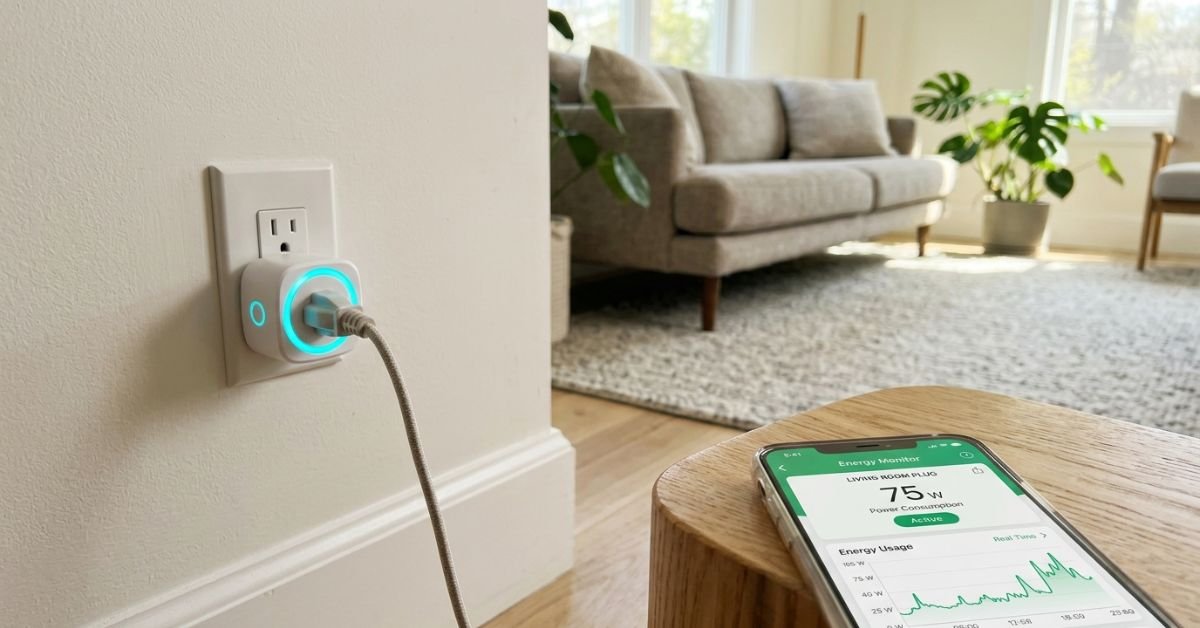
I installed three energy-monitoring smart plugs (like Kasa or Tapo, which run around $6 to $8 each on sale). I set up simple automations: at 11:30 PM, the smart plugs kill power entirely to my office workspace and secondary TV setup, restoring power at 7:00 AM. In standby power alone, stopping phantom loads can shave a noticeable sliver off your utility bill over a year.
- The Monthly Savings: Saved: ~$5–$12/month on electric bills.
15. Leverage Domestic Utility Rebates for Smart Thermostats
Heating and cooling account for more than half of the energy use in a typical US home. A learning thermostat pays for itself quickly, but you shouldn’t pay full price for the hardware.
Major domestic utilities (including Duke Energy, PG&E, ComEd, National Grid, and Con Edison) offer instant rebate marketplaces. You can often snag an Ecobee or Google Nest thermostat for anywhere from free to $30 (down from $150–$250) simply by enrolling in seasonal demand-response programs.
- The Monthly Savings: Saved: ~$15–$30/month in seasonal HVAC costs.
16. Replace Paid Home Security Subscriptions with Local RTSP Cameras
Paying Ring, ADT, or SimpliSafe $10 to $30 a month just to review recorded footage from your own front door is frustrating.
Swap them out for cameras that support local MicroSD recording or universal RTSP feeds, like select models from Reolink or Eufy. You get immediate motion alerts, crisp 2K video streams, and full-resolution clip archives stored directly to an internal card or local network drive—completely skipping recurring monthly cloud storage fees.
- The Monthly Savings: Saved: $15/month.
Digital Subscription Audits and Open-Source Replacements
17. Swap Microsoft 365 for FOSS Alternatives
If you are paying $69.99/year (or $6.99/mo) for Microsoft 365 Personal mainly to write basic documents, review occasional spreadsheets, and build simple slide decks, hit cancel.
Switch to LibreOffice for a robust, completely free, and open-source desktop productivity suite that handles classic .docx and .xlsx files without issues. If you prefer working inside a web browser, Google Docs, Sheets, and Slides remain free and more than capable for everyday home management.
- The Monthly Savings: Saved: ~$7/month.
18. Cut Cable Bloat with an OTA HD Antenna and FAST Services
The average price of live TV streaming packages like YouTube TV and Hulu + Live TV has climbed to roughly $73 to $77 per month.
If you primarily tune in for local news, NFL Sunday broadcasts on CBS and FOX, or prime-time network television, put up a one-time $25 Over-The-Air (OTA) digital antenna. Pair that with Free Ad-Supported Streaming TV (FAST) services like Pluto TV, Tubi, and The Roku Channel. You get crystal-clear, uncompressed broadcast quality with zero recurring bills.
- The Monthly Savings: Saved: $75/month.
19. Drop Photoshop for Darktable and Photopea
Paying Adobe’s $9.99/month Photography bundle or $20/month Single App subscription adds up fast if you only edit vacation photos twice a year.
For raw photo processing, Darktable and RawTherapee serve as powerful, free open-source alternatives to Lightroom. For quick raster design work, Photopea runs straight in your web browser with a UI so similar to legacy Photoshop that your muscle memory works right out of the box.
- The Monthly Savings: Saved: $10–$20/month.
20. Run DNS-Level Ad Blockers to Lower Data and Bandwidth
Ads, trackers, and background analytics scripts don’t just clutter web pages; they inflate webpage load times and consume up to 40% of the mobile data piped into your devices.
Install uBlock Origin on your desktop browsers, and configure private DNS profiles like NextDNS or AdGuard DNS directly inside your home router or smartphone settings. By stripping ads before they download, your browsing runs noticeably faster, battery endurance improves, and you save precious megabytes on limited mobile data buckets.
- The Monthly Savings: Extends hardware battery life and prevents overage fees on low-cost data plans.
21. Pool Streaming and Music Services via Household Family Tiers
Paying for individual Spotify, Apple Music, or YouTube Premium subscriptions under one roof is an easy trap to fall into. Two separate Spotify accounts cost $23.98/month ($11.99 each).
Consolidate into an official Family or Duo plan. Spotify Duo runs $16.99/month for two people, while an Apple Music Family plan lets up to six family members share access for $16.99/month. Grouping shared services with household members keeps the same listening libraries while trimming your monthly tally.
- The Monthly Savings: Saved: ~$7–$15/month.
The Actual Monthly Savings: My Real-World Receipt Audit
Here is the exact monthly cost breakdown of what changed on my bank statements once these swaps took full effect:
| Service Category | Old Monthly Cost | New Monthly Cost | Real Monthly Savings | | :— | :— | :— | :— | | Mobile Carrier (1 Line) | $85.00 (Verizon Postpaid) | $25.00 (Visible Unlimited) | $60.00 | | Home Broadband | $105.00 (1 Gbps + Modem Rental) | $40.00 (300 Mbps Owned Gear)| $65.00 | | Cloud Storage & Backups| $12.99 (Google One + Dropbox) | $0.00 (Syncthing + Local Drive) | $12.99 | | PDF & Office Suites | $26.98 (Acrobat + MS 365) | $0.00 (PDFgear + LibreOffice) | $26.98 | | Live TV / Streaming | $72.99 (Live Stream Bundle) | $20.00 (OTA Antenna + Rotation)| $52.99 | | Home Security Sub | $10.00 (Cloud Camera Sub) | $0.00 (Local MicroSD / RTSP) | $10.00 | | TOTALS | $312.96 / month | $85.00 / month | $227.96 / month |
That represents $2,735.52 stayed in my pocket across a single year, achieved simply by cutting out convenience fees and switching to modern, low-effort alternatives.
Frequently Asked Questions
Will I notice deprioritization if I switch to an MVNO network?
In most day-to-day scenarios, no. While primary carrier subscribers receive top network priority during major stadium events or crowded parades, modern MVNO tiers—such as Visible+ or US Mobile’s Warp 5G priority buckets—receive identical QCI priority levels to standard postpaid plans on the same towers. For general web browsing, GPS navigation, and video streaming, real-world speeds are practically indistinguishable.
Is open-source software safe for regular, non-technical users?
Yes. Established Free and Open-Source Software (FOSS) projects like Bitwarden, LibreOffice, and VLC are audited by global developer communities. Because their source code is completely public, malicious updates or covert data collection cannot hide easily. For daily computing, downloading stable builds from their official domains is just as safe as downloading proprietary software from commercial vendors.
Does buying refurbished electronics carry a high risk of hardware failure?
Not if you buy from reputable platforms with explicit grading criteria and return guarantees. Marketplaces like Swappa and Back Market require sellers to pass diagnostic evaluations, confirm clean IMEI numbers, and maintain minimum 80–85% battery health ratings. Avoid unverified private sellers on flea-market apps, and look for certified refurbished units backed by at least a 30-day money-back guarantee and a one-year warranty.
Can 300 Mbps home internet really support remote work and 4K streaming simultaneously?
Yes, easily. High-definition 4K streaming uses around 25 Mbps per stream. A work Zoom video call uses between 2 and 4 Mbps. Even with two people on video calls and another streaming video in 4K, your total household load rarely crosses 60 Mbps of steady bandwidth. What matters most for remote work is low latency and solid in-home Wi-Fi coverage, not an oversized Gigabit pipe.
How much effort does setting up local smart home hardware actually require?
Modern local smart gear is designed for straightforward consumer setup. Connecting an energy-monitoring smart plug takes about two minutes using a companion app on your phone. From there, setting up a shut-off timer is a one-time process. Once configured, you don’t need to tweak it again, and your energy savings run quietly in the background every month.